
Chrome crashed at minute 43. Your recording is fine.
Captureleaf records your screen, a tab or your webcam with microphone and system audio, and writes every second straight to disk as it goes. No watermark, no time limit, nothing uploaded, and nothing to lose when the browser dies. Free forever with a free account.


 chrome, brave, edgeNo watermark, no time limitNothing uploaded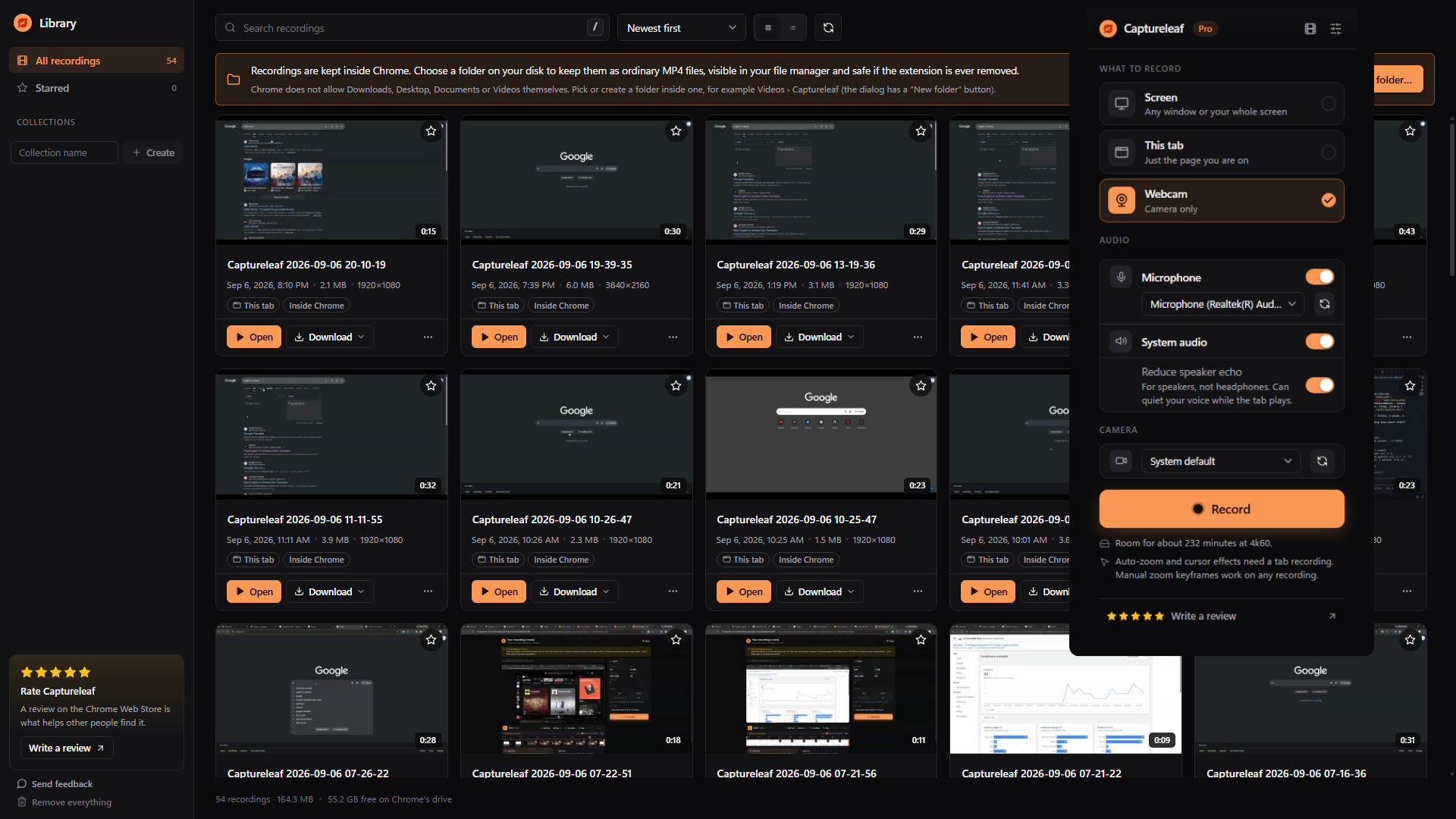
Most recorders hold your video in memory until you press Stop
Which is fine, right up until the tab closes, the browser gives up or the battery does. Both of these are recording the same session. Kill the browser and see what each one has left.
A fragmented MP4 is written to the Origin Private File System and flushed every second, so a file cut short by a crash is still a valid, playable recording. The most a crash can cost you is the second you were in.
- 1s
- How often it is flushed to disk
- 387×
- Realtime MP4 export speed
- 4K/60
- Maximum capture and export
- 4
- Export formats, none watermarked
- 0
- Bytes of your recording uploaded
Four sources, one Record button
Pick what you are recording and what you are recording it with. Microphone, tab audio and system audio each have their own toggle, mixed live into one track.
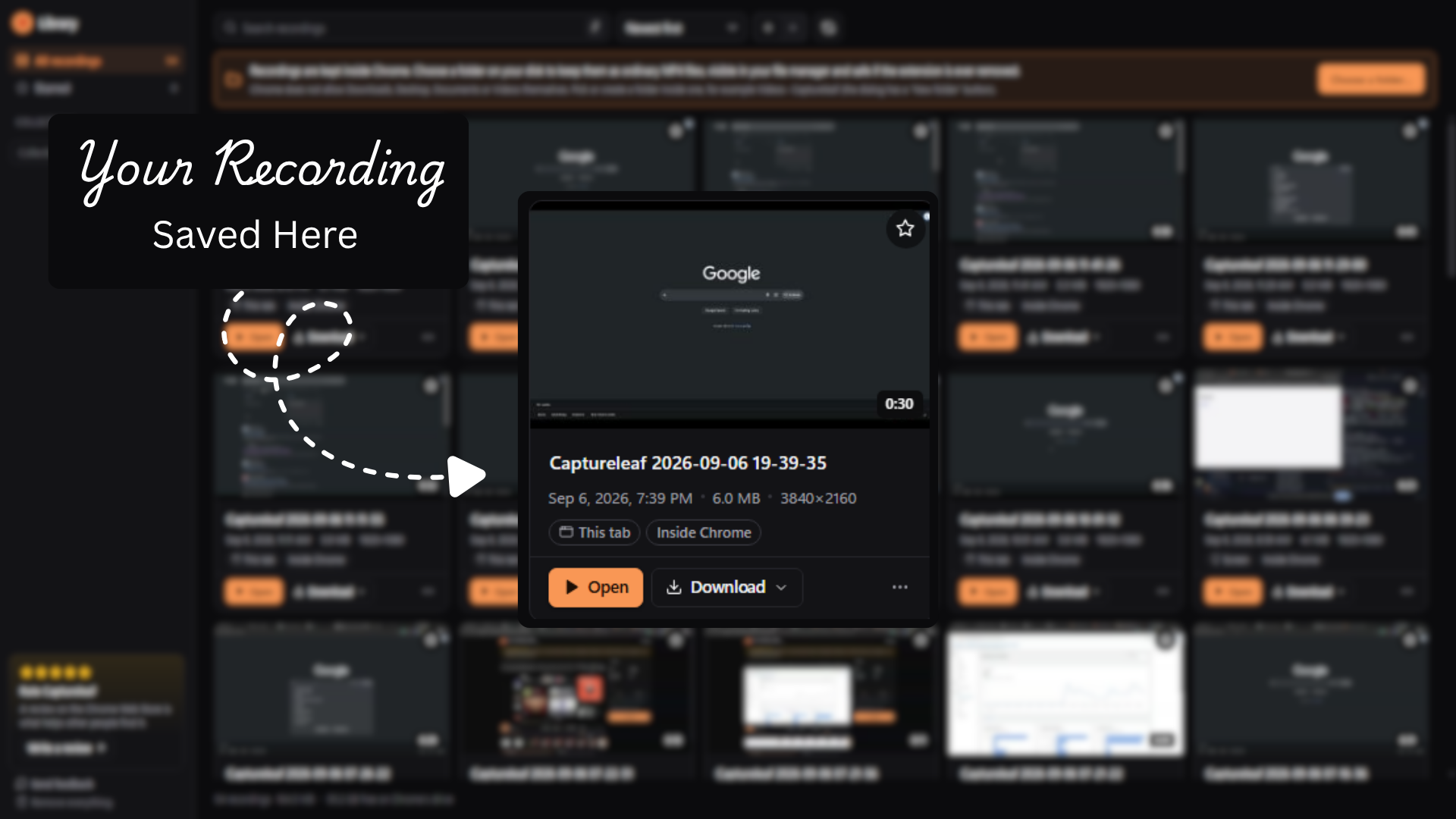
Press Stop and you are already on the screen that finishes the job
No project to create, no timeline to learn, no second application to install. The recording opens with its size and duration, a Download button that never asks you to rate, sign up or upgrade first, and just enough editing to cut the false start off the front.
- trim start and end
- cut any number of sections from the middle
- crop the frame
- smart trim cuts on keyframes so the export stays instant; exact trim when you need the frame
- undo and redo
The original is never touched. Every edit is rendered fresh from the recording, so you can come back a month later and cut it differently.
Four ways out, all at full resolution and none of them watermarked
The file lands in your Downloads folder with the exact path shown on screen, or in a folder you picked on your own disk.
MP4
DefaultCopied, not re-encoded
The packets are moved into a normal, seekable MP4 at about 387× realtime. An hour of footage takes seconds, not an hour.
WebM
When you need VP9
A real conversion rather than a copy, so it costs a few seconds for a short clip. Quality is pinned high on purpose.
GIF
Clips under 30 seconds
For the loop that goes in a pull request or a chat thread, where an autoplaying image beats a file nobody will download.
MP3
Audio only
Pull the audio out of a call, a lecture or a walkthrough without exporting the video first. Offered when the recording has sound.
Everything in the box
Most of it is in Free. Pro is the part that makes a recording look like it was made for an audience.
How it works
From install to a file you own
No project to set up, no render queue, no upload. Under five seconds from clicking the icon to recording.
Install and activate
Install Captureleaf, pin it, and create a free account to activate it. One email and a password - no card. Then open the popup, pick screen, tab or webcam, and press Record.
Record
While you record, every encoded chunk is written straight to disk instead of being held in memory. A live timer and file size sit in a floating on-page bar and on the toolbar badge, and global shortcuts (Ctrl+Shift+9 to start or stop, Ctrl+Shift+8 to pause, Ctrl+Shift+7 to mute) work even when Chrome is not the front window.
Survive the crash
If Chrome crashes, the tab closes or the machine restarts mid-recording, the recording is rebuilt from what was saved and shows up in the popup under "Recover last recording".
Trim and crop
When you stop, the result page opens with the video, its size and duration. Trim the ends, cut sections from the middle, crop the frame, and undo or redo - what you preview is exactly what you export.
Export and keep
Export to MP4 (copied, not re-encoded, so an hour-long recording takes seconds), WebM, MP3 audio-only or animated GIF, at full resolution with no watermark. The file lands in your Downloads folder with the exact path shown, or in a folder you choose on your own disk.
A screen recording shows more than you meant it to
Which is exactly why none of it leaves your machine. The questions people ask before they trust a recorder, answered.
Three ways to record a screen, and what each one costs you
The trade is usually your footage for their convenience, or your reliability for their price. Captureleaf is built so you do not have to make it.
Free is the whole recorder. Pro is for an audience.
Capture, crash recovery, editing and watermark-free export at full resolution are all in Free, for good. Pro adds the finishing that turns a screen recording into something you would put in front of a customer.
| Feature | Free$0 forever | ProFrom $2.99 monthly, yearly or one payment |
|---|---|---|
| Screen, Tab & Webcam Recording | Included | Included |
| Crash-Proof Recording | Included | Included |
| Resolution & Frame Rate | Limited | Included |
| Global Keyboard Shortcuts | Included | Included |
| Trim, Cut & Crop | Included | Included |
| Export to MP4, WebM, GIF & MP3 | Included | Included |
| Library | Included | Included |
| Auto-Zoom & Cursor Effects | Not included | Included |
| Backgrounds & Aspect Ratios | Not included | Included |
| Private By Design | Included | Included |
Pick how you want to pay
Monthly, yearly, or one payment and never think about it again. The first 500 lifetime licences are $29.99 instead of $49.99.
Before you install
What Free includes, why an account is needed, where your recordings go and what happens when things go wrong.
The recording you are about to make is worth more than the tool you make it with
Pro Lifetime is $29.99 for the first 500 licences instead of $49.99. Monthly is $5.99.
More from Syntaximos
Other Chrome extensions we build and maintain.

The #1 Fiverr Gig SEO Tool With God's Powers to Rank Higher
Chrome extension that analyzes Fiverr to improve your gig SEO and cut down your research time for better rankings.

The Screenshot Tool That Captures at 16x - Not Your Monitor's Resolution
Chrome extension that captures any full page, element or region at 2x-16x resolution. Your screenshots never leave your device.

Find Anything You Have Seen - Full Text Search Across Your Tabs, Bookmarks and History
Search your browsing history, tabs and bookmarks by the words that were on the page. Private and local - your index never leaves your device. Free forever with a free account.