Chrome's “Capture Full Size Screenshot” Not Working? Why It Happens and How to Fix It
We broke Chrome's “Capture full size screenshot” on purpose, six different ways. Here is what each failure looks like, why it happens, and the fix that works.
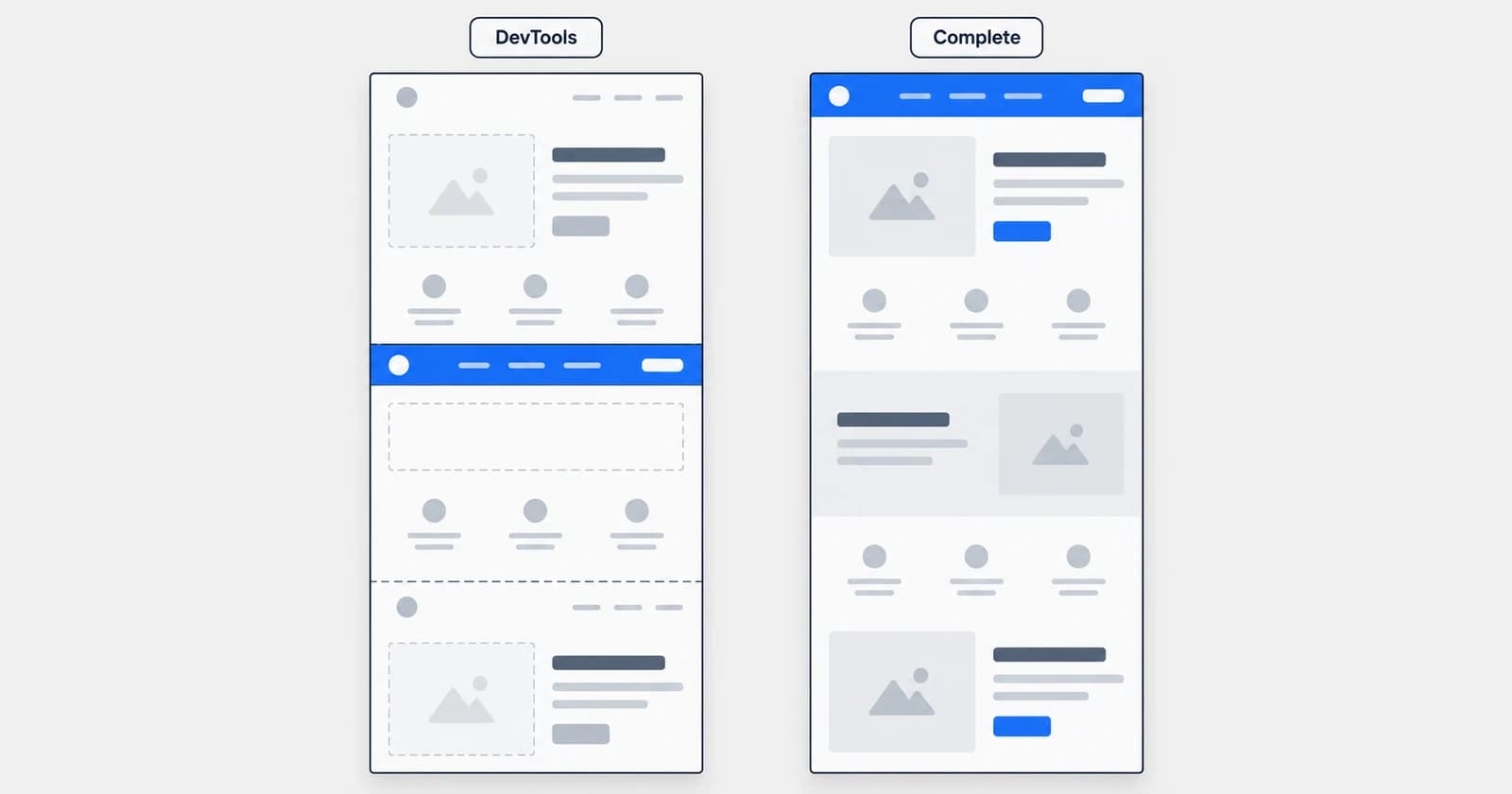
Chrome's Capture full size screenshot usually "doesn't work" in one of six specific ways: images further down come out blank, sections that fade in are missing, a fixed header lands in the middle of the page, you only get one screen, the bottom of a long page repeats the top, or the command isn't in the menu at all. The command itself is fine. It takes one picture of the page as it is at that moment, and these six cases are where that page is not the one you see when you scroll.
We built a test page with each problem on it and captured it in Chrome 154 with the same DevTools Protocol call the command uses. Every failure below was reproduced before it was written down, and every fix was checked against the same page.
How Capture full size screenshot is meant to work
Open DevTools, run the command from the Command Menu, and Chrome downloads a PNG of the whole page. Step by step:
- Press F12 (or Ctrl+Shift+I, and Cmd+Option+I on a Mac) to open DevTools.
- Press Ctrl+Shift+P (Cmd+Shift+P on a Mac) to open the Command Menu.
- Type
screenshotand choose Capture full size screenshot. - Chrome saves the PNG the way it saves any download, usually into your Downloads folder.
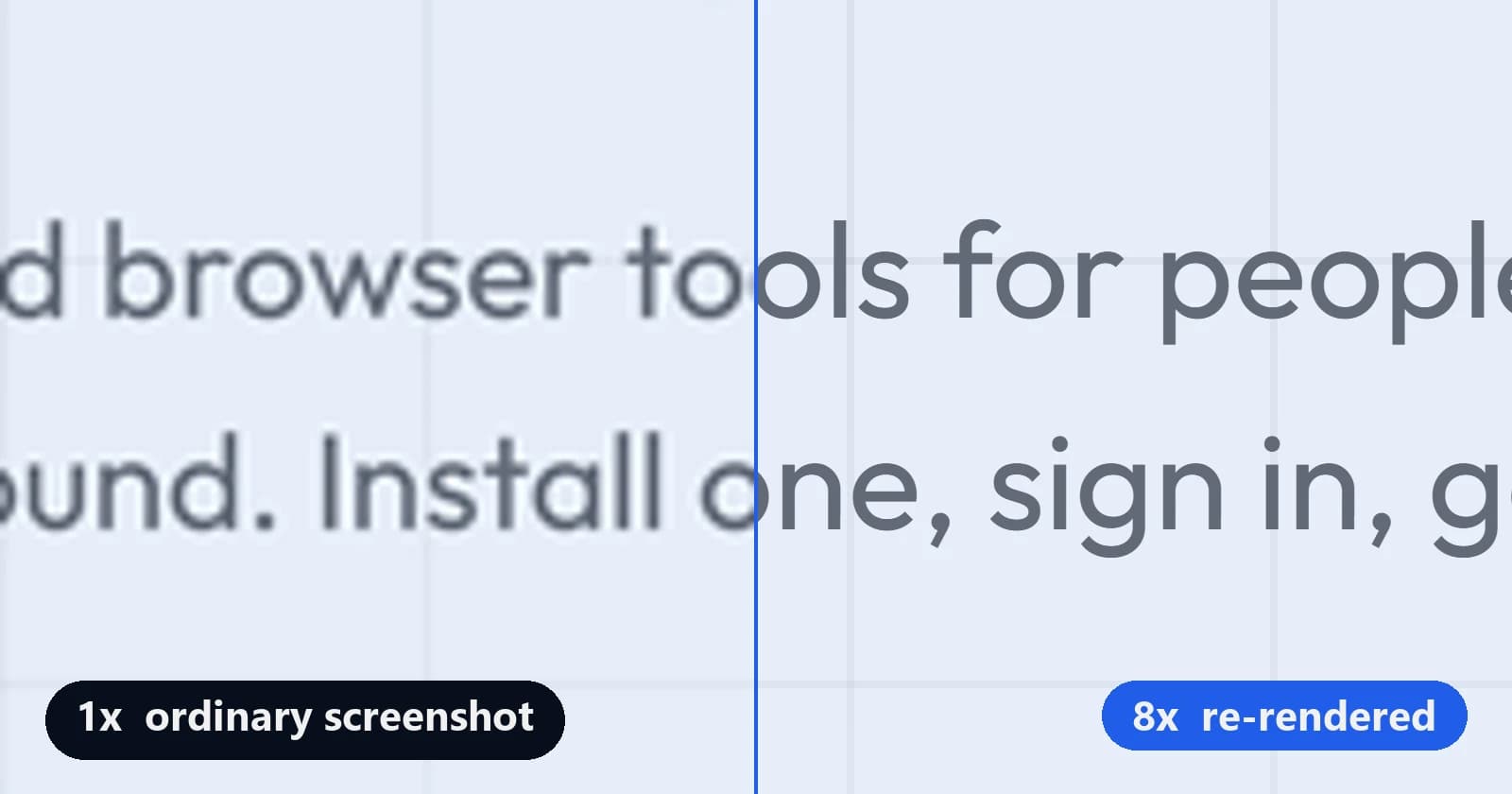
The same command sits in the ⋮ menu of the device toolbar (Ctrl+Shift+M), next to Capture screenshot, which takes only the visible area. The capture is taken at your screen's pixel ratio. If you need it sharper than your screen, our high-resolution DevTools guide shows how to raise it.
Which fix do you need?
| What the capture looks like | Fix |
|---|---|
| Images further down are blank boxes | Scroll to the bottom first |
| Whole sections are missing, leaving empty gaps | Scroll first, or turn on reduced motion |
| The header is in the middle of the page, or missing | Press Home before capturing |
| You only get one screen, never the full page | Unlock the scrolling panel in Elements |
| The bottom of the image repeats the top of the page | Capture in parts, or at a lower scale |
| The command isn't in the menu at all | Use the Command Menu, keep the > |
1. Images further down the page come out blank
Scroll slowly to the bottom of the page, wait for the images to appear, then capture. Images come out blank because the page has not downloaded them yet: most sites only load an image when you scroll near it, and the capture does not scroll.
This catches both kinds of lazy loading. In our test an image using the browser's own loading="lazy" attribute, 9,000 px down the page, was an empty box, and so was an image loaded by the site's own script on scroll. Once we had scrolled past them, both appeared in the next capture.
Scrolling with End jumps straight to the bottom and can skip images in between, so use the mouse wheel or Page Down and let each screen settle. On infinite-scroll pages, stop where you want the capture to end, because every scroll makes the page longer.
2. Whole sections are missing, leaving empty gaps
Scroll through the page before capturing, or turn on reduced motion so the site skips its entrance animations. An empty gap where a section should be is almost always content that starts invisible and fades or slides in when you scroll to it.
Our test section used the most common version of this: hidden with opacity: 0 until the browser reports it on screen. The full-size capture did not count as "on screen", so the section was missing, and the space it took up was left blank. The scrolling pass from fix 1 brings these sections in, because each one runs its animation as you pass it.
If you would rather not scroll, open the DevTools Rendering tab (Command Menu → "Show Rendering") and set Emulate CSS media feature prefers-reduced-motion to reduce. Sites that respect that setting show their content without animating it. Not every site does, so check the result.
Animations that keep running, such as carousels and spinners, are caught mid-move. That is not a bug. The capture is one frame, so pause the carousel or wait for the slide you want.
3. The header shows up in the middle of the page
Press Home to go back to the top, then capture. A fixed header stays where it is on your screen while the page scrolls, so the capture paints it wherever you happened to be scrolled.
We captured our test page from the top and the header sat correctly at the top. We scrolled down 3,000 px and captured again: the header was gone from the top and printed across the middle of the page, covering an image. A sticky subheader moved too, to the bottom of its section instead of under its heading.
If you want the header gone entirely, for a cleaner image or because it covers something, select it in the Elements panel and press H to hide it, then capture. Press H again to bring it back. The same trick removes cookie banners and chat bubbles, which are usually fixed to the screen as well.
4. You only get one screen, never the whole page
The page scrolls inside a panel rather than as a whole, so as far as Chrome is concerned the page is exactly one screen tall. Web apps, dashboards, email clients and many documentation sites are built this way. The capture is correct for the page it sees; the content is just inside a box.
Our app-shell test page, with 3,200 px of content in a scrolling panel, came back as a single 800 px screen. To fix it, let the panel grow to its full height before you capture:
- Right-click inside the scrolling area and choose Inspect. In the Elements panel, walk up the tree until you find the element whose Styles show
overflow: autooroverflow: scrolltogether with a fixed height. - In its Styles, add
height: autoandoverflow: visible. - Do the same for
htmlandbodyif they haveoverflow: hiddenorheight: 100%. - Run Capture full size screenshot again.
With those four rules changed, the same test page captured at its full 3,536 px. The changes only last until you reload. Some layouts look odd once the panel is unlocked, for example a sidebar that no longer stretches the full height, but nothing is cut off.
For a single panel, such as one long table, right-click it in the Elements panel and use Capture node screenshot after step 2.
5. The bottom of the image repeats the top of the page
Your page is taller than the capture can hold, which is 16,384 pixels. Chrome does not show an error when you go past it. In our test, a 30,000 px page came back the right height, but from 16,384 px down it started over with the top of the page, and the real bottom half was nowhere in the file.
The limit counts image pixels, not page pixels, so it arrives sooner on a sharp screen. On a 2x display, where every page pixel is drawn with two image pixels, our capture repeated every 8,192 px of page. Run window.devicePixelRatio in the console to see your ratio, then divide 16,384 by it to find your limit.
Three ways around it, from simplest:
- Capture at 1x. On a high-resolution screen, open the device toolbar, set the device pixel ratio to 1 and capture. That doubles the height you can take on a 2x screen, at the cost of sharpness. Our guide to blurry screenshots explains what that costs on a Retina display.
- Capture in parts. In Elements, hide (H) the top sections of the page, capture, then unhide them and hide the bottom sections instead. Join the parts in an image editor.
- Print to PDF. Ctrl+P → Save as PDF has no height limit, but it splits the page into sheets and uses the site's print layout, which can look quite different.
6. The command isn't in the menu at all
Open the Command Menu with Ctrl+Shift+P, not Ctrl+P, and keep the > at the start of the box. Without the >, the same box searches the page's files instead of commands, and typing "screenshot" finds nothing useful. The same happens if you type it into the Console or the Elements search.
Other reasons the command can be out of reach:
- DevTools is disabled. On a work or school computer, an administrator can switch DevTools off with Chrome's DeveloperToolsAvailability policy. F12 then does nothing. Visit
chrome://policyto see which policies apply. - Screenshots are blocked. The DisableScreenshots policy blocks screenshots taken by the browser and its extensions. Only the administrator can lift either policy; there is no setting on your side that overrides them.
- You are on Android or iPhone. Chrome on a phone has no DevTools. Use the phone's own scrolling screenshot instead.
A full-page screenshot without the workarounds
Every fix above is a manual version of one idea: get the page into the state you see when you scroll, then capture it. Shotdex, one of the Chrome extensions we build, does that for you when you press Alt+Shift+S (Cmd+Shift+S on a Mac).
- It scrolls the page first, so lazy images load and scroll animations finish before anything is captured.
- It captures the page in slices and stitches them, with fixed headers shown once and animations paused so the seams line up.
- It checks each slice and takes it again if the page moved mid-shot.
- When a capture is too large for Chrome at the scale you chose, it tells you and you lower the scale, instead of handing you an image that silently repeats.
Pages that scroll inside a panel, the case in fix 4, still need the Elements trick. Shotdex is free with a free Syntaximos account and captures at up to 2x; Pro goes to 16x. Your screenshots never leave your device.
 Add to Chrome for free
Free on the Chrome Web Store. Free account required; Free captures at up to 2x.
Frequently asked questions
How do I take a full page screenshot in Chrome with F12?
Press F12 to open DevTools, press Ctrl+Shift+P, type screenshot and choose Capture full size screenshot. Chrome downloads the whole page as a PNG. Scroll to the bottom first if the page has images that load as you scroll.
Where does Chrome save DevTools screenshots?
In your normal download location, usually the Downloads folder. If Chrome is set to ask where to save each file, it asks for these too.
Why is my DevTools screenshot blurry?
It is captured at your screen's pixel ratio, so on a 1x monitor it is 1x. Raise the device pixel ratio in the device toolbar before capturing; the high-resolution screenshot guide walks through it.
Can DevTools capture one element instead of the whole page?
Yes. Right-click the element in the Elements panel and choose Capture node screenshot. The Command Menu also has Capture area screenshot, which lets you drag a box over the visible part of the page.
How do I remove the screenshot restriction from Chrome?
If the restriction is a Chrome policy set by your organisation, you can't. Check chrome://policy for DisableScreenshots or DeveloperToolsAvailability, and ask your administrator. If a website blocks right-click or the F12 key, open DevTools from Chrome's ⋮ menu → More tools → Developer tools instead; the capture works as normal.