Why Are My Screenshots Blurry? 6 Causes and How to Fix Each One
A screenshot copies your screen exactly, so the blur comes from somewhere else. Six causes, how to tell which one you have, and the fix for each.
Your screenshots are blurry because something softened them before or after the capture: browser zoom, display scaling, a JPEG save, an app's compression, a small crop being enlarged, or a capture taken at 1x and then shown on a sharper screen. The screenshot itself is not the problem. Taking one copies the pixels on your screen exactly.
That is good news, because every one of those causes has a specific fix. This guide shows what each one looks like, how to tell which one you have, and how to keep screenshot quality from slipping in the first place.
Why are my screenshots blurry? Find the cause fast
Ask one question first: was the screenshot blurry the moment you took it, or only after you sent, pasted, cropped or opened it somewhere else? The first points at your screen settings. The second points at what happened to the file afterwards.
| What you see | Most likely cause |
|---|---|
| Soft the moment you open it, and the page looked smaller than usual | Browser zoom below 100% |
| Everything on your screen, or one desktop app, is already a little fuzzy | Display scaling or resolution |
| Blocky smudges or pale halos around the letters | Saved or re-saved as JPEG |
| Sharp as a file, blurry once it is sent, posted or pasted into a document | An app compressed it |
| Fine at first, blurry after you cropped and enlarged it | A small crop was scaled up |
| Fine on your laptop, soft on a Retina screen, 4K monitor or projector | Captured at 1x |
1. Your browser zoom isn't at 100%
Set the page back to 100% before you capture it. At 80% or 90% zoom, Chrome draws every letter with fewer pixels than normal, so small text is already thin and faint before the screenshot is taken. Enlarge that screenshot later and it falls apart.
Chrome remembers zoom for each website, so a site you zoomed out on last week is still zoomed out today. A magnifier icon in the address bar means the page is not at the default size; click it and choose Reset. The keyboard shortcut Ctrl+0 (Cmd+0 on a Mac) does the same, but it resets to Chrome's default zoom, so check that Settings → Appearance → Page zoom is 100% as well. Google's Chrome zoom help page covers both settings.
Zooming in is the opposite case. At 150% or 200% every letter gets more pixels, which is why zooming in before a capture is one of the quick tricks in our guide to high-resolution screenshots.
2. Your display is scaling or stretching the picture
If your screen already looks slightly soft, every screenshot will too, because a screenshot copies what the screen shows. Two settings cause this.
- A resolution below the screen's native one. Run a 1920 × 1080 panel at 1600 × 900 and everything is stretched to fill it. Set Display resolution back to the option marked Recommended.
- Display scaling above 100%. Apps that were not built for high-resolution screens are drawn at their normal size and then enlarged by Windows as a bitmap. Web browsers handle scaling properly, so this mostly affects older desktop software.
Why are my screenshots blurry on Windows 11?
Usually because of that bitmap stretching, especially after you dock a laptop, move a window to a monitor with a different scale, or connect over Remote Desktop. Two fixes, in order:
- Open Start, search for advanced scaling settings, and turn on Let Windows try to fix apps so they're not blurry. Restart the app.
- If one app is still blurry, right-click its shortcut and choose Properties → Compatibility → Change high DPI settings. Tick Override high DPI scaling behavior and set Scaling performed by to Application. Microsoft's developer notes on DPI scaling explain that this tells Windows not to bitmap-stretch the app.
3. The screenshot was saved or re-saved as a JPEG
Save screenshots as PNG, not JPEG. JPEG is built for photos. It throws away fine detail to make files smaller, and the hard edges of text are exactly the detail it throws away first, leaving pale halos and blocky smudges around each letter.
Screenshots usually start life as PNG: the macOS shortcuts save PNG by default, and so do the snips Windows' Snipping Tool saves automatically. JPEG sneaks in later. Snipping Tool's Save as dialog can offer JPG as the file type, so check it before you click Save. Image editors that export JPEG, a "save for web" step and websites that convert uploads do the same, and each re-save loses a little more.
PNG is lossless, which means the file keeps every pixel you captured. MDN's image format guide compares the two in detail. Lossless WebP works as well as PNG and makes smaller files.
4. The app you sent it with, or pasted it into, compressed it
Most messaging apps, social networks and office programs shrink and recompress images to save space, so a sharp screenshot can arrive soft. Send it as a file instead of as a photo, or switch off the app's compression.
Why are my screenshots blurry when I send them?
Because the copy that arrives is not the file you sent. Common culprits and what to do about each:
- WhatsApp says media is usually compressed when shared. HD quality is sharper than Standard, and you can make it the default under Settings → Storage and data → Media upload quality (see About HD photos and videos). The surest route is to send the screenshot as a document, which delivers the original file.
- Text messages (SMS and MMS) have small size limits, so phones and carriers compress pictures heavily. Use a messaging app or email instead.
- Social networks recompress every upload. Post the screenshot at a larger size than it will be shown, so the site scales it down rather than up.
- Word, PowerPoint and Excel compress pictures in a file by default. Under File → Options → Advanced → Image Size and Quality, tick Do not compress images in file, as described in Microsoft's PowerPoint advanced options.
Why are my screenshots blurry on iPhone?
iPhone screenshots are saved as full-resolution PNGs, so the blur almost always happens on the way out. Check that Low Quality Image Mode is off under Settings → Apps → Messages: Apple describes it in its Messages troubleshooting guide as a way to send smaller images. Messages sent as MMS rather than iMessage or RCS are compressed too. And with Optimize iPhone Storage on, Apple keeps space-saving versions on the phone, so an older screenshot can look soft until the full-resolution file downloads from iCloud.
5. A small crop was scaled up
A crop keeps only the pixels inside it. Cut a 300-pixel-wide chart out of a screenshot, stretch it across a 1,920-pixel slide, and every pixel has to cover more than six times its width. The app fills the gaps by blending neighbouring colours, and blended edges are what blur looks like.
The fix is to capture more pixels, not to enlarge fewer. Zoom the page in before you take the screenshot, or capture it at a higher pixel ratio so the crop has detail to spare. Our resolution table shows how many pixels a slide, a 4K screen or a printed page actually needs.
6. It was captured at 1x and viewed on a sharper screen
A screenshot taken on an ordinary 1080p monitor has one image pixel for every point on the page. Open it on a Retina MacBook, a 4K monitor or a phone, where each point is drawn with two or three pixels, and the image has to be doubled or tripled to fill the same space. It looks soft even though nothing is wrong with the file.
You can check your own screen's ratio by running window.devicePixelRatio in the browser console. If it prints 1, your screenshots are 1x. The fix is to capture at 2x or higher, which our step-by-step DevTools guide does for free in Chrome.
Why are my screenshots blurry on a Mac?
A Mac's built-in Retina display captures at 2x, so screenshots taken there are sharp. The usual culprit is an external 1080p monitor, which captures at 1x. Drag the window onto the Retina screen before you press Cmd+Shift+4. Apple lists every shortcut in Take a screenshot on your Mac.
How to make your screenshots not blurry: a checklist
Screenshot quality is decided at two moments: when you capture and when you share. Get both right and a screenshot stays as sharp as your screen.
Before you capture
- Reset browser zoom to 100%, or zoom in deliberately if you need more detail.
- Keep your display on its recommended resolution, and fix any app that looks fuzzy on screen with the scaling setting above.
- Capture at 2x or higher if the image will be enlarged, printed or viewed on a sharper screen.
After you capture
- Save as PNG or lossless WebP, never JPEG, for anything with text.
- Crop generously and avoid enlarging small crops.
- Send the file as a document or attachment, or pick the app's HD option.
- Insert the saved file into documents instead of pasting, and turn off Office picture compression.
- Never screenshot a screenshot. Go back to the source and capture it again.
Sharp at the source, in one click
Most of the causes above come down to capturing too few pixels. Shotdex, one of the Chrome extensions we build, fixes that at the source: it has Chrome repaint the page at the pixel ratio you choose, then captures that, whatever screen you are on.
- Free captures at up to 2x and exports PNG, so a screenshot from a 1080p laptop stays crisp on a Retina screen.
- Pro goes up to 16x for print and large displays. See Shotdex plans and prices.
- Your screenshots are processed on your own machine and never leave your device. A free Syntaximos account is needed to sign in.
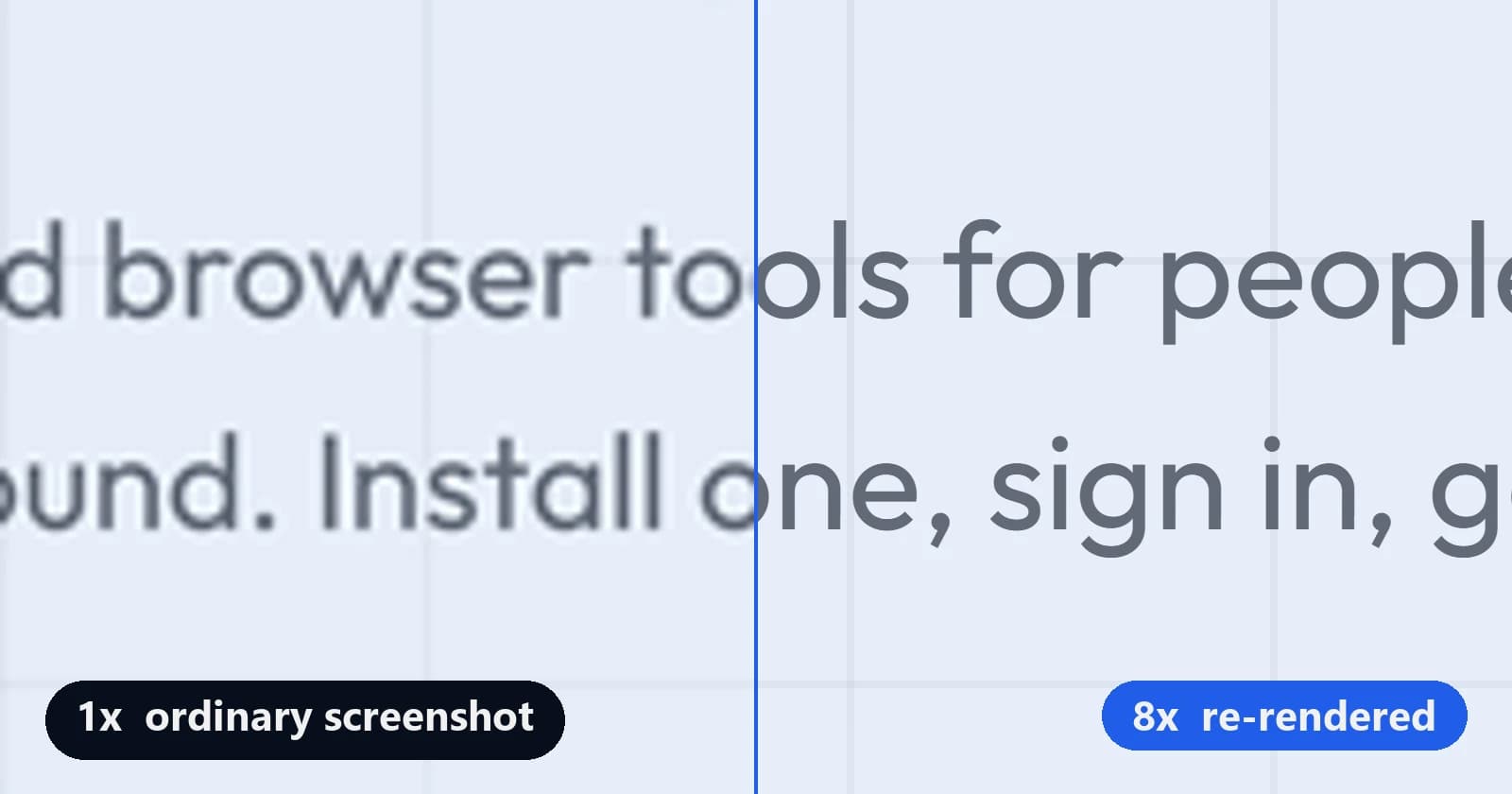
To see what 1x against 8x looks like on real text, drag the divider in the resolution comparison on the Shotdex page.
 Add to Chrome for free
Free on the Chrome Web Store. Free account required; Free captures at up to 2x.
Frequently asked questions
Does taking a screenshot reduce quality?
No. A screenshot copies the pixels on your screen exactly, and PNG stores them without loss. Quality is lost afterwards, when the image is saved as JPEG, compressed by an app, or enlarged.
Why do screenshots lose quality?
Because of what happens to the file after the capture. Each JPEG save, chat-app upload or resize throws away some detail, and the losses add up. A screenshot that has been through three of those steps can look far worse than the original.
How can I improve the quality of a screenshot I already took?
Only a little. A screenshot upscaler, including the AI tools that promise to make a screenshot HD, can smooth jagged edges, but it guesses at detail that was never captured, and small text is where it guesses worst. If you can still open the page, take a new high-resolution screenshot instead.
Why do my Windows 11 screenshots look washed out?
That is HDR rather than blur. With HDR on, screenshots of normal content can come out pale or overexposed. Recent versions of Snipping Tool include an HDR screenshot color corrector under its Settings. Otherwise, turn HDR off in Settings → System → Display while you capture.
Why are my screenshots blurry on Android?
Android saves screenshots as full-resolution PNGs, so blur usually comes from sharing. Pictures sent by MMS are compressed hard, and some apps shrink images on upload. Send the file through a messaging app's document or HD option, or by email.
Why is a screenshot of a video blurry?
A video frame is already compressed, and fast motion is blurred in the frame itself. Pause on a still moment, raise the playback quality to the highest setting, and go full screen before you capture.
What DPI should a screenshot be for print?
DPI is only a label on the file. What matters is the pixel count. For print quality, aim for 300 pixels per printed inch, so a screenshot printed 6 inches wide needs 1,800 pixels across. The high-resolution guide shows how to capture that many.