How to Take a High-Resolution Screenshot of Any Webpage (4K, 8K and Beyond)
A screenshot is only as sharp as the screen it was taken on. Here is how to make Chrome paint the page at 2x, 4x or 8x, and capture that instead.
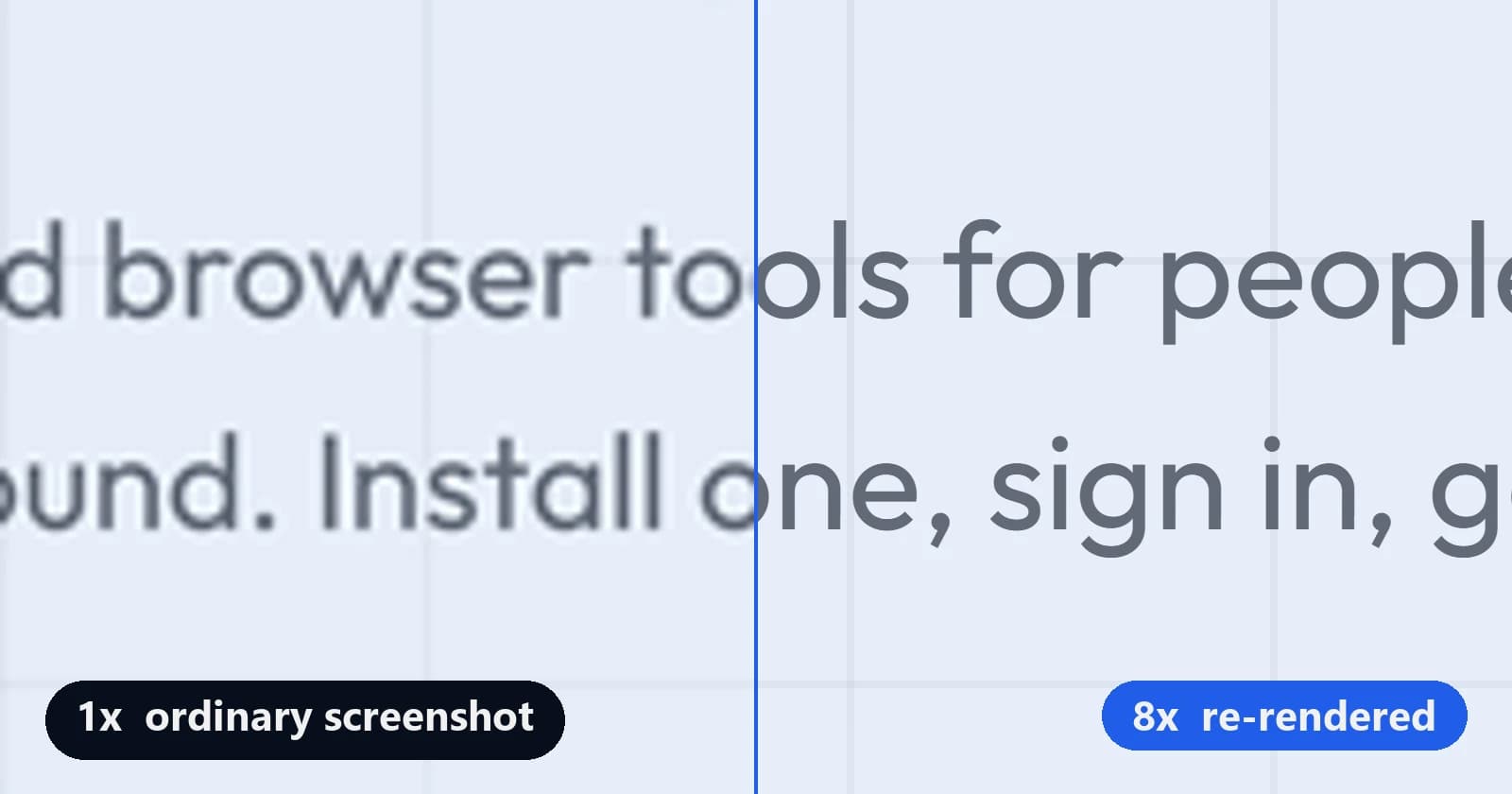
To take a high-resolution screenshot of a webpage, make the browser paint the page at a higher device pixel ratio, then capture it. In Chrome that takes five steps in DevTools and no install. Enlarging an ordinary screenshot afterwards does not work, because the detail was never captured in the first place.
An ordinary screenshot copies exactly what your screen shows. On most laptop and office monitors that is one image pixel for every pixel of the page. It looks fine at its original size, then goes soft the moment it is shown larger: on a slide, a Retina screen, a 4K monitor, or in print.
In short:
- Your screenshot's resolution is set by the device pixel ratio at the moment of capture, not by the image editor afterwards.
- Chrome DevTools can raise that ratio to 2x, 3x or any custom value and capture the whole page, free.
- Work out the ratio from where the image will end up. A 4K-wide image of a 1,440px page needs 3x; 8K needs 6x.
- Save as PNG and share the file, or compression will undo the work.
- Doing this often? Shotdex does the same thing in one click, and it is free on the Chrome Web Store.
Why a screenshot stops at your screen's resolution
A screenshot can only contain the pixels your screen drew, and your screen draws the page at its device pixel ratio. Web pages are laid out in CSS pixels. Your display paints them with device pixels. The ratio between the two decides how much detail exists to capture.
- A 1080p monitor at 100% scaling has a ratio of 1. A line of 16px text is drawn about 16 device pixels tall.
- A MacBook's Retina display has a ratio of 2. The same text gets 32 pixels of height and four times as many pixels in total.
- A ratio of 4 gives that line of text 64 pixels of height, which stays crisp even when the image is blown up across a 4K screen.
When a 1x screenshot is shown at twice its size, every pixel has to cover four. The viewer fills the gaps by blending neighbouring colours, and blended edges are what blur looks like. AI upscalers guess the missing detail more cleverly, but they still guess, and small text is where a wrong guess turns one letter into another.
To check your own ratio, open DevTools on any page, go to the Console and run window.devicePixelRatio. If it prints 1, every ordinary screenshot you take is 1x. The 1x versus 8x comparison on the Shotdex page shows what that costs: drag the divider across the same line of text and zoom in until the 1x side falls apart.
How to take a high-resolution screenshot in Chrome with DevTools
Open DevTools, turn on the device toolbar, raise the device pixel ratio, then run Capture full size screenshot. Chrome repaints the page at the new ratio and saves a PNG with that many more pixels. It works the same in Microsoft Edge, and the steps match Google's own device mode documentation.
- Open the page and press F12 or Ctrl+Shift+I (Cmd+Option+I on a Mac).
- Press Ctrl+Shift+M (Cmd+Shift+M on a Mac) to show the device toolbar above the page.
- Set Dimensions to Responsive and type the width you want, such as
1440, so the page keeps its desktop layout. - Open the toolbar's three-dot menu, choose Add device pixel ratio, then set the new DPR dropdown to
2or3. - From the same three-dot menu, choose Capture full size screenshot for the whole page, or Capture screenshot for the visible area. The PNG lands in your downloads folder.
Going above 3x with a custom device
The DPR dropdown stops at 3. For 4x, 6x or 8x, create a custom device and give it the ratio you need.
- In DevTools, press F1 to open Settings, then go to Devices.
- Click Add custom device. Enter a name, a width such as
1440, a height, and the Device pixel ratio, for example4. - Set the user agent type to Desktop, save, and pick the new device from the Dimensions list.
- Run Capture full size screenshot as before.
Three things that catch people out
- Phone presets change the page. Picking an iPhone or Pixel preset also switches the user agent, and many sites send mobile browsers a different layout. Stay on Responsive, or give your custom device a desktop user agent.
- Very large captures can fail. A long page at a high ratio produces an enormous image, and Chrome will not paint one of any size. If the file comes back cut off or blank, lower the ratio or capture the page in sections.
- Full-size captures are not scrolled. DevTools renders the page as one very tall window, so sections sized to the screen height can stretch, and images that load only as you scroll can come out empty. Scroll to the bottom once before you capture.
DevTools has four screenshot commands in all, including one for a single element and one for a dragged area. The Chrome DevTools team walks through each of them in 4 ways to capture screenshots with DevTools.
How to take a 4K screenshot (and how much resolution you need)
A 4K screenshot is 3,840 pixels wide, so divide 3,840 by the width of the area you are capturing, and capture at that ratio or the next whole number up. A page shown 1,920px wide needs exactly 2x. The same page at 1,440px needs 2.67x, so capture it at 3x. An 8K image, 7,680 pixels wide, needs twice those ratios.
The same sum works for any destination. Take the width the image will be shown at in real pixels, divide it by the width you are capturing in CSS pixels, and round up. The table assumes a full page 1,440px wide.
| Where it ends up | Pixels across | Capture at |
|---|---|---|
| Full width of a 1080p slide or screen | 1,920 px | 2x1.33x exact |
| Full width of a 4K screen | 3,840 px | 3x2.67x exact |
| Full width of an 8K screen | 7,680 px | 6x5.33x exact |
| Printed 8 inches wide at 300 ppi | 2,400 px | 2x1.67x exact |
| Printed across landscape A4 at 300 ppi | 3,508 px | 3x2.44x exact |
Crops need far more than whole pages. A single chart 360px wide, shown across a 1,920px slide, needs 1,920 ÷ 360 = 5.33x, so capture it at 6x. Anything above 3x needs the custom device from the DevTools steps above, or an extension that lets you type the ratio.
Round up rather than down. Extra pixels scale down cleanly and missing ones cannot be recovered. The price is file size, which grows with the square of the ratio: a 3x capture holds nine times the pixels of a 1x capture, and an 8x capture holds sixty-four.
Two quicker ways, without DevTools
Zoom the page, then take a normal screenshot
Press Ctrl and + (Cmd and + on a Mac) until Chrome shows 200%, then capture with Win+Shift+S on Windows or Cmd+Shift+4 on a Mac. Everything is drawn twice as large, so every letter gets twice the pixels in each direction.
The catch is layout. At 200% zoom the page behaves as if your window were half as wide, so responsive sites can switch to their tablet or phone design, and you can only capture what fits on screen. It suits one paragraph, chart or form. It does not suit a whole page.
Raise your display scaling
On Windows, open Settings → System → Display and set Scale to the highest value offered, such as 300%. Windows then renders everything, the browser included, at that ratio. Take the screenshot and set the scale back.
On a Mac with a Retina display you already capture at 2x, so the built-in Cmd+Shift+4 is a high-resolution screenshot tool as it stands. Apple lists every shortcut in Take a screenshot on your Mac. On an external 1080p monitor, drag the window back to the laptop screen before you capture.
How to take a screenshot without losing quality
Capture at the ratio the destination needs, save it as PNG, and send the file instead of pasting it. Most lost quality happens after the capture, in the steps below. If your screenshots already look soft before you share them, the cause is the pixel ratio you captured at.
- Save text as PNG or lossless WebP. JPEG compression smears the hard edges of letters, which undoes the extra resolution you just captured.
- Share the file, not a paste. Chat apps and some email clients recompress pasted images. Attach the original, or share a link to it.
- Resize once, at the destination. Place the full image in your slide or document and let it scale there, rather than shrinking copies and enlarging them again.
- Turn off your app's image compression. PowerPoint compresses pictures when it saves by default. Tick Do not compress images in file under File → Options → Advanced → Image Size and Quality.
- Never screenshot a screenshot. Each pass throws detail away. Go back to the page and capture it again.
High-resolution screenshots in one click
Shotdex is one of the Chrome extensions we build, and it does what the DevTools method does without the menus. It re-renders the page at the ratio you choose and then captures it. You can capture a full page, the visible area, a single element or a region you drag out, and scrolling pages are stitched into one image.
- Free captures at up to 2x, exported as PNG or JPEG.
- Pro goes from 3x up to 16x and adds WebP export. See Shotdex plans and prices.
- Alt+Shift+S takes a full-page capture and Alt+Shift+E captures one element, without opening a menu.
- Your screenshots are processed on your own machine and never leave your device. A free Syntaximos account is needed to sign in.
 Add to Chrome for free
Free on the Chrome Web Store. Free account required; Free captures at up to 2x.
Which route to take depends on how often you need it. For a one-off page at 2x or 3x, DevTools is free and already installed. For regular captures, single elements, or anything above 3x, an extension saves the trip through the menus every time.
Frequently asked questions
Can I increase the resolution of a screenshot after taking it?
Only approximately. Upscaling, including AI upscaling, can smooth jagged edges, but it cannot recover detail that was never captured, and small text is where it guesses worst. Capturing the page again at a higher ratio is always better.
What resolution is a screenshot?
A screenshot has exactly your screen's resolution. A full-screen capture on a 1920 × 1080 monitor is 1920 × 1080 pixels. On a Retina Mac, whose ratio is 2, a capture of a window 1,440 points wide is 2,880 pixels wide.
Does a 4K monitor give me high-resolution screenshots?
Only when display scaling is above 100%. At 200% scaling the ratio is 2 and screenshots are 2x. At 100% on a 4K panel, pages simply look smaller, and screenshots are still one pixel per CSS pixel.
Why is my high-resolution screenshot cut off or blank?
The image was too large for Chrome to paint in one pass. Lower the device pixel ratio, capture a narrower width, or split a long page into sections. Blank patches are usually images that load only when scrolled into view; scroll to the bottom of the page first.
Where can I find more screenshot guides?
The Syntaximos blog covers screenshots, screen recording and browser tools, written by the team that builds our Chrome extensions.
How do I take a high-quality screenshot on Windows or a Mac?
For anything on a webpage, use the DevTools method above: it works the same on both. For other apps on Windows, raise display scaling before you capture. On a Mac, capture on the built-in Retina display, which already records at 2x.